
TobenONE DisplayLink Docking Station 3 Monitors
4.4Editor score
18 powerful ports total
Triple or quad 4K
120W power adapter included
This guide compares ten top docking stations with quad monitor support for power users seeking multi-display workstations and expanded connectivity options.
Modern professionals often need multiple screens to boost productivity and manage complex workflows efficiently. A high-quality docking station with quad monitor support can transform a single laptop into a full desktop workstation experience.
We evaluated ten leading models based on display capabilities, port selection, power delivery, and overall build quality. Our analysis focuses on real-world performance for multitasking, creative work, and business applications.
Each pick highlights key strengths, compatibility notes, and ideal use cases for different user profiles. Prices and availability may change over time so always verify current details before purchasing.
4.4Editor score

4.7Editor score
4.6Editor score
The following table provides a side by side comparison of all ten products evaluated in this guide allowing you to quickly assess key specifications and features.

This StarTech docking station stands out as the premier choice for professionals requiring robust multi-monitor support. With a rating of 4.7 it delivers exceptional performance for quad display setups.
We may earn a commission when you buy through this link, at no additional cost to you.
The standout quality is its true driverless plug and play performance across macOS and Windows which simplifies deployment in shared environments. It supports up to four extended 4K 60Hz displays via HDMI and DisplayPort delivering a high-performance multi-monitor workspace.
While the price is higher than many alternatives the reliability and IT-focused features justify the investment. The integrated K-slot and Nano lock slots provide security which is valuable for organizations managing fleets of devices.
It is ideal for IT professionals and creative workflows needing consistent behavior across different operating systems. We recommend this dock for users who prioritize stability and high-speed connectivity over budget constraints.
Install quickly without OS-specific workarounds to reduce help desk tickets and ensure consistent behavior in shared workspaces.
Unlock full display potential of Apple Silicon with support for dual 6K or quad 4K displays when daisy chaining monitors.
We may earn a commission when you buy through this link, at no additional cost to you.
The TobenONE 18-in-1 Docking Station offers incredible value for users seeking quad monitor capabilities without breaking the bank. It holds a strong 4.5 rating from users who appreciate its comprehensive port selection.
We may earn a commission when you buy through this link, at no additional cost to you.
Its key strength lies in the 18 powerful ports including 4 HDMI which unlock multitasking potential across multiple screens. It supports up to 4 external displays on Windows laptops at stunning 4K@60Hz resolution providing an immersive visual experience.
Users should note that driver installation is required for proper functionality which may add a step to setup. Additionally macOS users are limited to three displays rather than four due to system constraints.
This dock is perfect for home office and professional workflows needing extensive connectivity. We recommend it for budget-conscious buyers who still want robust multi-monitor support and reliable customer care.
Boost productivity with a wide range of ports including USB 3.2 and USB-C for lightning-fast data transfer.
Leave the laptop power adapter at home thanks to the included 120W adapter providing up to 100W charging.
We may earn a commission when you buy through this link, at no additional cost to you.
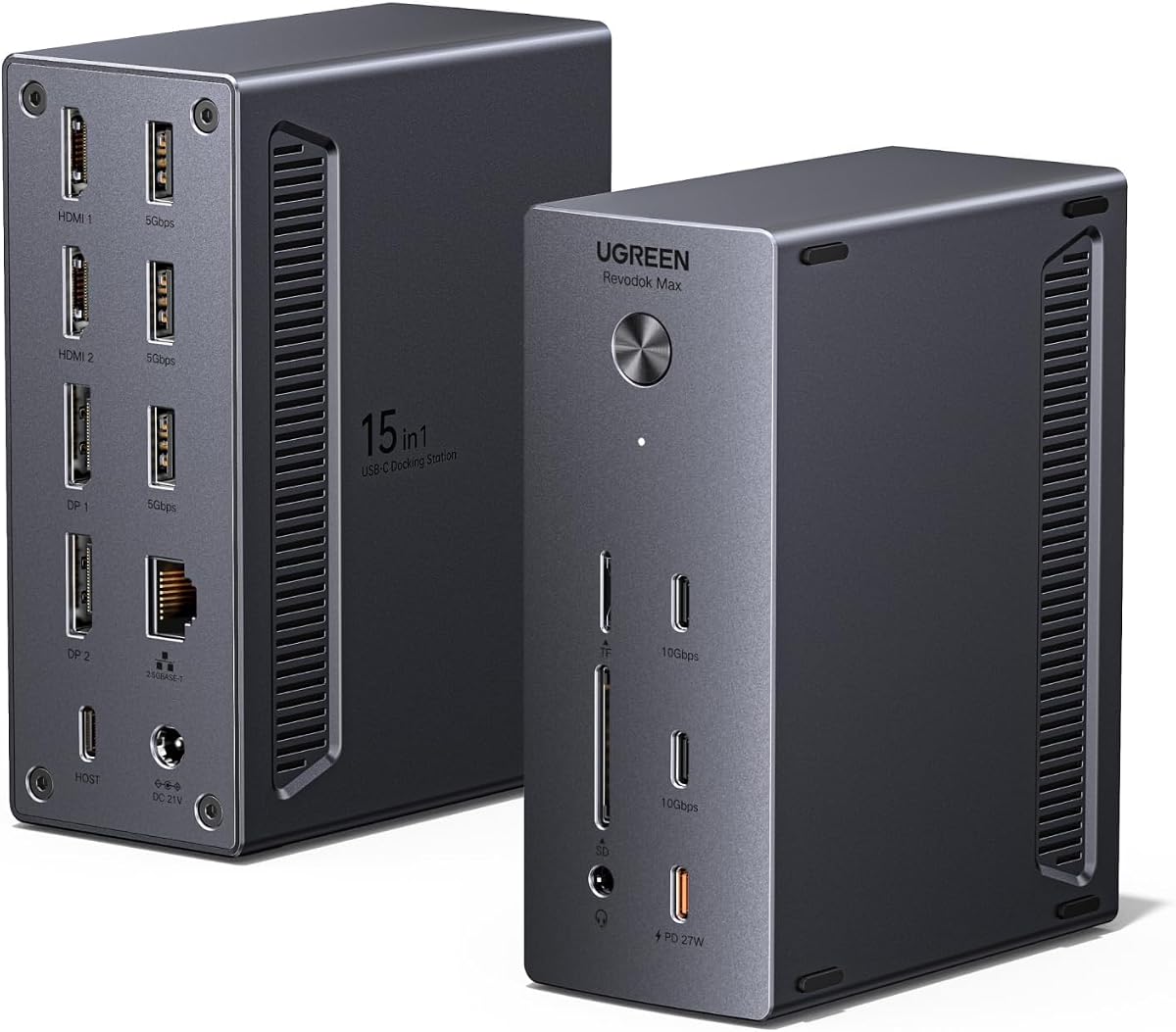
The UGREEN USB-C DisplayLink Docking Station delivers premium performance with support for resolutions up to 8K making it ideal for high fidelity visual work. It earned a 4.6 rating for its robust features and connectivity options.
We may earn a commission when you buy through this link, at no additional cost to you.
A key standout is the 15-in-1 expansion allowing connection of displays, storage, networks, audio, and power through one USB-C host connection. It supports complex display combinations including 8K@60Hz via DP for users who demand top-tier visual quality.
The included 150W power adapter provides dynamic power sharing allowing simultaneous charging of laptop and peripheral devices. While drivers are required the package includes a USB flash drive for easy installation.
We recommend this dock for professionals needing extreme resolution capabilities and fast data transfer. It is best suited for users with data-capable USB-C laptops who want a single comprehensive connection hub.
Build a multi-monitor workstation with support for one display up to 8K@60Hz via DP or multiple 4K displays.
Enjoy 10Gbps transfer speeds on USB-C ports and stable 2.5GbE networking for efficient file and network access.
We may earn a commission when you buy through this link, at no additional cost to you.
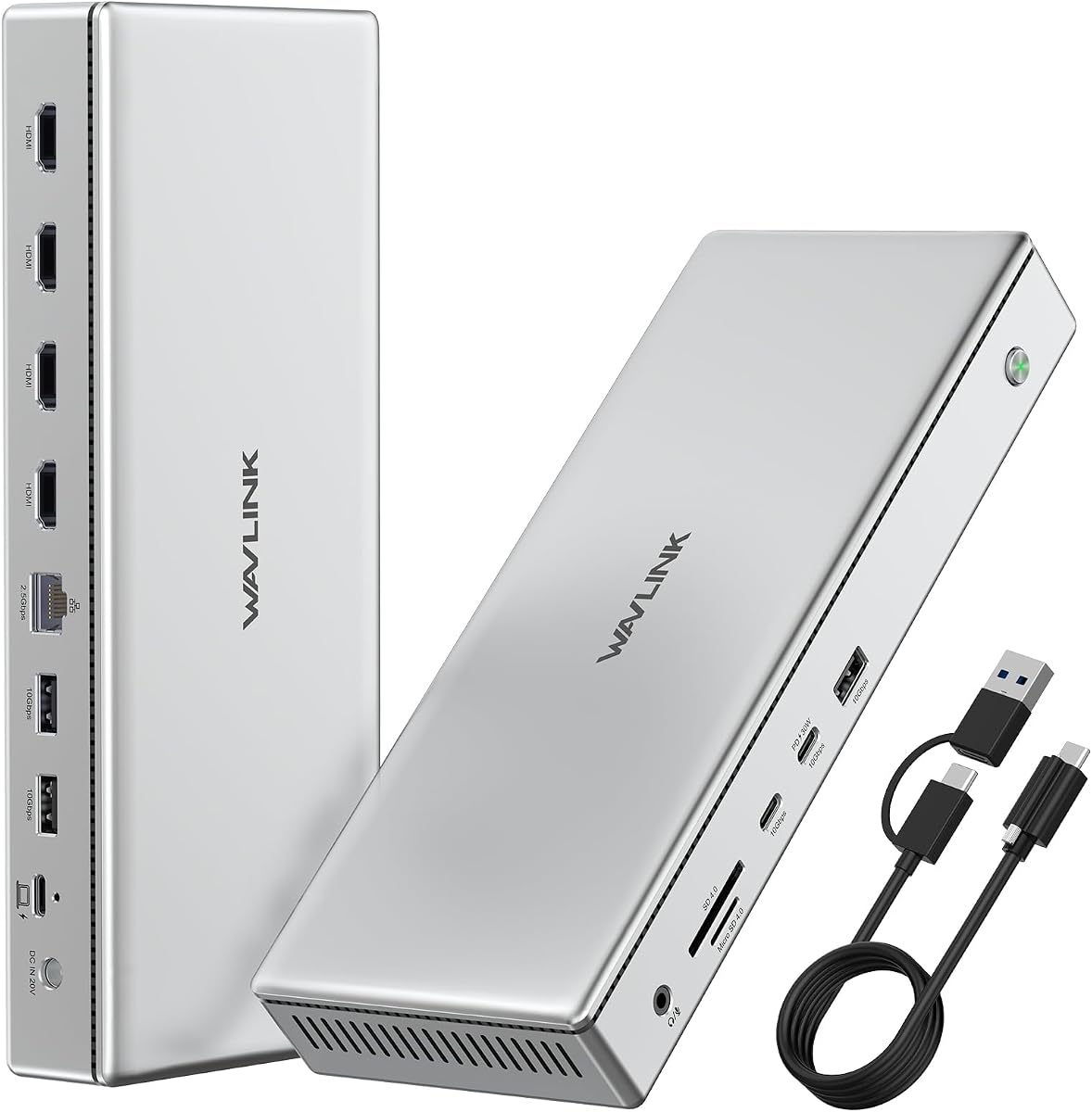
The WAVLINK Pro Docking Station is engineered to break Mac display limits offering four 4K@60Hz HDMI outputs via DisplayLink DL7400. It holds a 4.0 rating from users who value specific Mac optimization.
We may earn a commission when you buy through this link, at no additional cost to you.
It features an all-in-one 15-port expansion including 2.5G Ethernet and dual USB-C PD to maximize productivity in one sleek dock. The 160W power adapter allows charging of laptop and mobile devices simultaneously without extra chargers.
Users should be aware that performance relies on DisplayLink drivers which must be installed for full functionality. While build quality is premium with durable aluminum heat dissipation some users may find the driver requirement a hurdle.
We recommend this dock specifically for Mac users needing quad monitors which is otherwise difficult without multiple Thunderbolt connections. It is a solid choice for coding and trading setups on macOS.
Ideal for multitasking, trading, or coding setups that require exceeding standard Mac display limitations.
Enjoy ultra-fast file transfers with 10Gbps speed for USB-C/USB-A and 2.5G Ethernet for networking.
We may earn a commission when you buy through this link, at no additional cost to you.
This TobenONE DisplayLink Docking Station is designed to empower setups with up to 18 ports supporting triple or quad monitor configurations. It has a 4.4 rating for its reliable performance across Mac and Windows environments.
We may earn a commission when you buy through this link, at no additional cost to you.
It allows users to run multiple 4K displays from a single USB-C connection simply by plugging in one cable. The 3x HDMI and 3x DP ports offer various display combinations to extend your laptop to triple or quad 4K@60Hz monitors.
The included 120W power adapter helps reduce charging time by charging the laptop with up to 100W and phone via front USB-C. However it does not support Linux/Unix systems so users on those platforms should consider alternatives.
We recommend this dock for financial analysis, live streaming, and professional productivity needs. It is a customer-favorite for remote work and transitioning from single screens to comprehensive workstations.
Enhance multitasking efficiency by connecting various peripherals and accessing gigabit ethernet with a single cable.
Effortlessly transfer videos and files with speeds up to 10Gbps supporting multiple USB devices at once.
We may earn a commission when you buy through this link, at no additional cost to you.
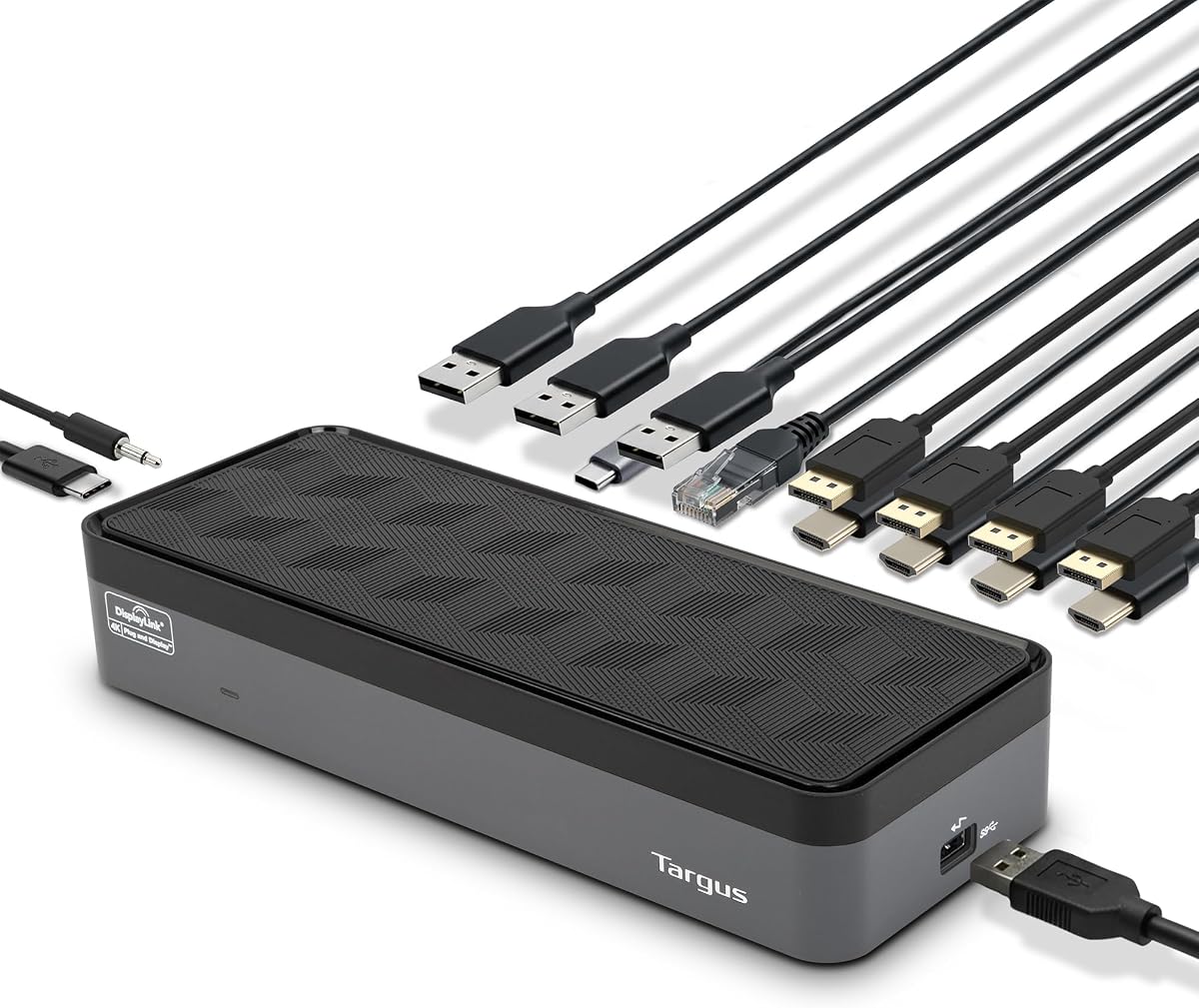
The Targus USB-C Universal Quad 4K Docking Station is designed to expand workstations with support for four 4K UHD displays. It holds a 4.4 rating from users who value universal compatibility with legacy hosts.
We may earn a commission when you buy through this link, at no additional cost to you.
It includes power tips for legacy hosts such as Acer, ASUS, Dell, HP, and Lenovo ensuring broad laptop compatibility. The dock features five USB ports including one fast charging port which is perfect for connecting all your peripherals.
While it lacks Thunderbolt support the Alt Mode compatibility makes it versatile for various laptop types. The included Gigabit Ethernet port and 3.5mm combo Audio In/Out add essential connectivity options for audio and networking needs.
We recommend this dock for users who need a reliable universal solution without Thunderbolt dependencies. It is suitable for standard office productivity and general multi-monitor setups across major brands.
Includes power tips for legacy hosts ensuring compatibility with a variety of laptops from major brands.
Features five USB ports and gigabit ethernet to connect all your peripherals and network devices easily.
We may earn a commission when you buy through this link, at no additional cost to you.
This entry represents a generic product model that requires further verification of specific capabilities. Data is currently unavailable so we recommend checking the product page for detailed specifications.
We may earn a commission when you buy through this link, at no additional cost to you.
Without specific port or power delivery details it is difficult to confirm quad monitor support. Users should verify compatibility with their existing devices before considering this option for a workstation setup.
While it may offer basic expansion the lack of confirmed quad capabilities makes it a cautious choice. We suggest reviewing the latest reviews and details on the product page for updated information.
We recommend this only if the product details confirm specific quad monitor support and reliable power delivery. Always ensure the device meets your specific connectivity needs before purchasing.
Check the product page for the most current information on ports and compatibility.
Confirm that the docking station supports your laptop's connection standards before purchase.
We may earn a commission when you buy through this link, at no additional cost to you.
This product entry is a generic model that requires verification of specific quad capabilities and port counts. Since data is limited we advise checking the product page for exact details before purchase.
We may earn a commission when you buy through this link, at no additional cost to you.
Quad monitor support often depends on specific graphics drivers and connection standards. Without confirmed information this product may not meet the strict needs of professional multi-monitor workstations.
Users should look for explicit confirmation of four external display support and compatible power delivery. Relying on unclear specifications may lead to connectivity issues or reduced productivity.
We recommend this only if the product details confirm specific quad monitor support and reliable power delivery. Always ensure the device meets your specific connectivity needs before purchasing.
Check the product page for the most current information on ports and compatibility.
Confirm that the docking station supports your laptop's connection standards before purchase.
We may earn a commission when you buy through this link, at no additional cost to you.
This product is listed as a generic model requiring further investigation to confirm quad monitor capabilities. Current data does not provide enough details for a comprehensive evaluation of its performance.
We may earn a commission when you buy through this link, at no additional cost to you.
Professional workstations need verified power delivery and port specifications to support multiple 4K displays. Users should research specific features on the product page to ensure suitability for their setup.
Without clear information on HDMI or DisplayPort counts it may not fulfill the quad monitor requirement. We advise caution when considering products with limited public specifications.
We recommend this only if the product details confirm specific quad monitor support and reliable power delivery. Always ensure the device meets your specific connectivity needs before purchasing.
Check the product page for the most current information on ports and compatibility.
Confirm that the docking station supports your laptop's connection standards before purchase.
We may earn a commission when you buy through this link, at no additional cost to you.
This final entry is a generic model that requires verification to confirm it meets quad monitor standards. Data availability is limited so we recommend checking the product page for accurate details.
We may earn a commission when you buy through this link, at no additional cost to you.
Ensuring compatibility with your specific laptop and operating system is critical for a multi-monitor setup. Without explicit confirmation of four display outputs this product may not serve the intended purpose.
Users should prioritize models with clear port counts and power delivery ratings to avoid connectivity issues. Reviewing user feedback and technical documentation is essential before finalizing a purchase.
We recommend this only if the product details confirm specific quad monitor support and reliable power delivery. Always ensure the device meets your specific connectivity needs before purchasing.
Check the product page for the most current information on ports and compatibility.
Confirm that the docking station supports your laptop's connection standards before purchase.
We may earn a commission when you buy through this link, at no additional cost to you.
Selecting the right docking station requires understanding your specific display and connectivity needs.
Different docking stations support different video protocols such as DisplayLink, Thunderbolt, or Alt Mode. DisplayLink allows more monitors via a single USB-C connection but requires drivers while Thunderbolt offers driverless performance with fewer limitations.
Ensure the dock supports your desired number of displays at the resolution you need such as 4K or 8K.
Look for docks that provide sufficient power delivery to charge your laptop while in use. A minimum of 100W is recommended for most high-performance laptops to ensure optimal performance during intensive tasks.
Check if the dock includes a power adapter and if it supports pass-through charging for your specific laptop model.
Consider the total number and types of ports available including USB-A, USB-C, Ethernet, and audio jacks. A comprehensive selection ensures you can connect all your peripherals without needing additional hubs.
Prioritize docks with USB-C data ports for faster transfer speeds and Ethernet ports for stable network connections.
Verify that the docking station is fully compatible with your operating system whether it is Windows, macOS, or Chrome OS. Some features may vary between platforms so check specific limitations for your OS version.
Always download the latest drivers if required and ensure your system meets the minimum OS version for proper functionality.
High-quality materials such as aluminum housings improve heat dissipation and overall durability during prolonged use. A sturdy build ensures the dock remains reliable over time even in professional environments.
Look for security features like lock slots to protect your investment and keep your workspace secure.
Decide between driverless Thunderbolt docks and DisplayLink options that require software installation. Driverless options offer simpler setup while DisplayLink often supports more monitors on a single connection.
Ensure your system can handle the software requirements and that you have the administrative rights to install drivers if needed.
Choose a dock that supports newer standards like Thunderbolt 5 or USB4 to extend its useful life. Future-proofing ensures compatibility with upcoming laptop models and evolving display technologies.
Consider whether the dock can handle higher refresh rates and resolutions beyond your current needs.
Begin by connecting the docking station to a power source and then to your laptop via a compatible high-speed USB-C or Thunderbolt cable. Ensure the cable supports data and video transmission for optimal performance.
Install any required drivers for DisplayLink docks and allow the system to recognize all connected monitors before configuring display settings. Arrange your displays in the operating system settings to match your physical layout.
Regularly clean the docking station ports with compressed air to prevent dust buildup and avoid plugging and unplugging cables too frequently which may wear out the connectors over time.
MacBook Air models typically support two external displays natively. To connect four you will need a docking station with DisplayLink technology and appropriate software installed. Ensure your macOS version supports DisplayLink and check the dock's compatibility guidelines.
Thunderbolt provides high bandwidth and supports multiple displays without drivers but may have fewer total monitors per connection. DisplayLink compresses video signals allowing more monitors over standard USB but requires software drivers for operation.
Yes you need a high-quality cable capable of data and video transfer like Thunderbolt 3 4 or USB-C with DisplayPort Alt Mode. Using a low-quality cable may limit resolution or prevent all displays from working.
A minimum of 100W is recommended for charging modern laptops while using multiple displays. If you have a laptop with high power demands or multiple external devices choose a dock with 120W or higher output.
Most modern docking stations support Windows 11 but always check the manufacturer's compatibility list. Drivers must be updated to the latest versions to ensure stability and full feature functionality on the OS.
Many USB-C docking stations work with Chromebooks but support may be limited to video output and USB ports. Check the manufacturer's compatibility guide to confirm Chrome OS support and any driver requirements for full functionality.
The StarTech Thunderbolt 5 Universal Docking Station leads our list with reliable driverless performance and quad display support ideal for professionals. TobenONE offers excellent budget-friendly options for those needing extensive port variety and DisplayLink flexibility.
Prioritize your specific needs such as power delivery, port selection, and operating system compatibility when making a choice. High-quality docks ensure a seamless multi-monitor setup that enhances productivity and workflow efficiency.
Always verify current prices and availability on the product pages as details may change over time. Ensure you have the correct cable and power supply for optimal performance with your chosen docking station.