
BENFEI USB C Hub 5-in-1
4.6Editor score
4K HDMI at 30Hz
100W charging support
Soft silicone cable design
Explore our expert comparison of the top HDMI hub for PC options to find the best USB C adapter or splitter for your specific monitor and productivity needs.
Finding the right connection solution is essential for modern workstations. An HDMI hub for PC allows you to expand your setup significantly. These devices connect multiple screens and peripherals through a single port.
We evaluated ten top rated models based on performance and compatibility. Our team reviewed technical specifications and user feedback carefully. Each product offers unique features for different computing environments.
Every pick highlights specific strengths and potential limitations. You will see ratings and key specifications for each option. Remember that availability and stock levels change regularly.
4.6Editor score

4.5Editor score

4.4Editor score
This table provides a side-by-side look at the key specifications and features of all ten selected products. Use it to quickly compare connectivity options and display capabilities.





This Anker docking station stands out as a robust solution for professionals needing extensive connectivity. With a strong rating from users, it delivers reliable performance for dual screen workflows. The hub combines essential ports into a single sleek unit.
We may earn a commission when you buy through this link, at no additional cost to you.
The dual HDMI capability allows you to connect two external monitors for enhanced productivity. It supports 4K resolution ensuring crisp visuals for creative work or data analysis. Power delivery pass-through keeps your laptop charged while you work continuously.
While it offers extensive features, note that macOS users will see identical displays on both screens. Linux systems are not supported by this specific model. These constraints are minor trade-offs for the broad feature set it provides.
If you need a dependable hub for a multi-monitor office setup, this is an excellent choice. It balances performance and portability well. The strong build quality ensures it will last through daily use.
Connecting two monitors lets you compare documents or reference material easily without switching tabs.
The hub manages charging and data transfer simultaneously so you stay connected without extra adapters.
We may earn a commission when you buy through this link, at no additional cost to you.
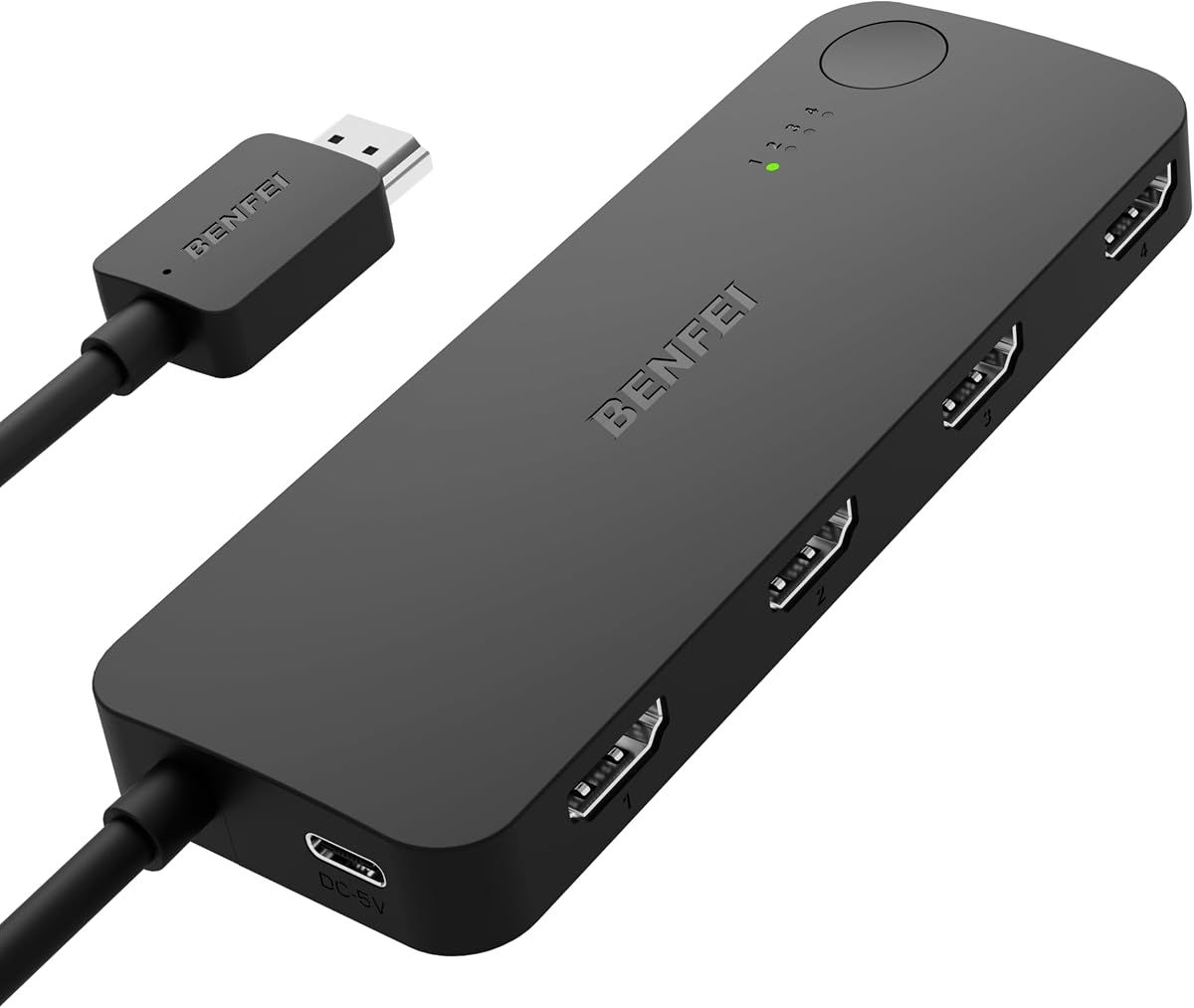
This HDMI switch is ideal for entertainment centers or setups where multiple devices share one display. It offers excellent value for the price while supporting high definition video. The design simplifies cable management significantly.
We may earn a commission when you buy through this link, at no additional cost to you.
You can connect four different devices like gaming consoles or media players to a single screen. The adaptive equalization technology ensures stable signals even with longer cable runs. It supports high resolutions for smooth gaming or streaming experiences.
Keep in mind that this device requires an external power adapter to function correctly. You must switch inputs manually using the button on the unit. These requirements are standard for switches in this category.
For anyone looking to reduce cable clutter in a gaming or media room, this is a practical tool. It provides a straightforward way to toggle between favorite devices. The compatibility with major consoles makes it versatile.
Link your Switch, Xbox, and PlayStation to one TV without constantly swapping cables manually.
Advanced tech maintains signal integrity over distance ensuring clear video without dropouts.
We may earn a commission when you buy through this link, at no additional cost to you.
This compact hub offers a wide range of ports in a sleek form factor. It is designed to maximize the utility of a single USB-C port on modern laptops. The 60Hz video support makes it suitable for smoother content.
We may earn a commission when you buy through this link, at no additional cost to you.
You get access to dual card slots which is rare for hubs this size. The HDMI port delivers high resolution video for presentations or media. USB-A ports provide fast data transfer for peripherals and drives.
Note that the USB-C data port does not support video output. The charging limit is slightly lower than the maximum 100W some laptops prefer. These factors should be considered based on your specific device needs.
If you travel often and need multiple ports without a bulky dock, this is a great option. It balances size and functionality effectively. The build quality ensures durability for regular transit.
Read photos and files from dual card slots quickly without needing separate adapters.
The 60Hz support reduces motion blur for a more fluid viewing experience.
We may earn a commission when you buy through this link, at no additional cost to you.
This hub focuses on user comfort with a unique silicone cable design. It is built to withstand frequent connection and disconnection cycles easily. The aluminum case keeps the unit cool during extended operation.
We may earn a commission when you buy through this link, at no additional cost to you.
It supports full 100W power delivery which is ideal for high end laptops. You can connect three USB devices at once alongside your display. The 4K support ensures sharp text and image quality.
The 30Hz refresh rate is a common limitation for compact hubs but is fine for office work. Your laptop port must support video output to use the HDMI feature. These details are standard for this type of device.
For users who prioritize comfort and durability in their daily driver, this hub is a strong choice. The silicone cable makes it easy to carry. It offers great value for the features provided.
The flexible silicone cable does not knot easily making packing and unpacking easier.
Laptops charge at full speed while you use the hub without losing performance.
We may earn a commission when you buy through this link, at no additional cost to you.
Anker is known for reliable accessories and this hub is no exception. It provides a balanced mix of ports for general productivity tasks. The design is simple and easy to use for most people.
We may earn a commission when you buy through this link, at no additional cost to you.
The USB C data port allows fast transfer with external drives or phones. Charging passes through at 100W so your device stays powered up. The HDMI output supports high resolution for clear external display.
It lacks Ethernet which some power users might need for stable network connections. The USB C port does not carry video which limits flexibility. These are minor trade-offs for the price point.
If you need a trustworthy hub for everyday work or home use, this works well. It is straightforward and effective. The build quality reflects the brand's usual standards.
Transfer large files to external drives quickly using the dedicated USB-C data port.
Plug and play design means you get started immediately without complex drivers.
We may earn a commission when you buy through this link, at no additional cost to you.
This switch is a straightforward way to connect three HDMI sources to one screen. It includes a cable to get you started right away. The design is compact and fits easily on a desk.
We may earn a commission when you buy through this link, at no additional cost to you.
It supports 4K resolution which is useful for high definition content or work. The manual buttons allow you to pick your source quickly. Gold plated connectors help maintain a stable connection over time.
An external power adapter is needed for operation so you need an outlet nearby. There is no remote so you must reach the device to switch inputs. This is typical for this class of switch.
For simple setups where you just need to toggle between a few devices, this works well. It keeps cable count low and costs reasonable. The included cable adds immediate value to the package.
The included HDMI cable means you do not need to buy extra gear to start.
4K capability ensures you get the best image quality from your devices.
We may earn a commission when you buy through this link, at no additional cost to you.
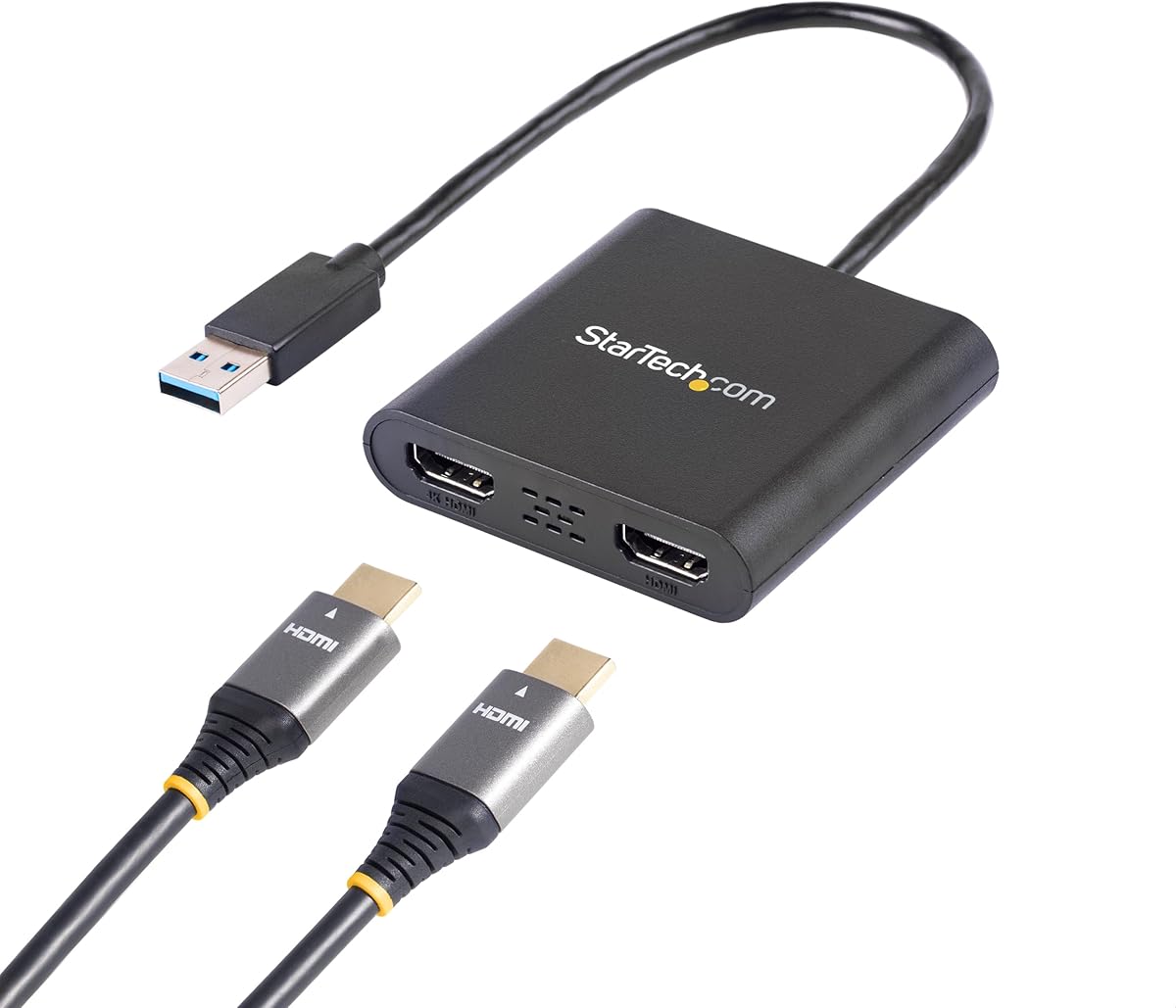
This adapter is built for Windows users who need to extend their desktop to two monitors. It uses a USB A port which is common on older laptops. It provides a reliable way to add displays.
We may earn a commission when you buy through this link, at no additional cost to you.
You can get 4K resolution on one screen and 1080p on the other easily. The USB A interface means you do not need USB C ports to use it. Audio is transmitted through the HDMI cables as well.
You will need to install drivers before using it which adds a step. It does not work on Mac or Linux systems so check your OS first. These limits make it a specialized tool.
For office environments using Windows desktops or laptops, this is a solid utility. It helps expand screen real estate efficiently. The IT focused design ensures stability for professional use.
Works with standard USB A ports so even older computers can support dual screens.
Designed specifically for Windows to ensure compatibility and smooth driver integration.
We may earn a commission when you buy through this link, at no additional cost to you.
This hub offers a wide array of ports in a single docking station unit. It connects to USB 3.0 for fast data transfer and video. The design accommodates both Windows and Mac users easily.
We may earn a commission when you buy through this link, at no additional cost to you.
You get multiple USB ports for keyboard mouse and storage devices simultaneously. The HDMI output supports 1080P which is sufficient for many tasks. A dedicated power port keeps the hub stable with all ports in use.
You must install drivers to enable full functionality which adds setup time. Video output is limited to 1080P so 4K is not an option here. These are standard limitations for this type of adapter.
If you have an older system without USB C or need many USB ports, this helps. It adds flexibility to desktops or laptops. The power port ensures reliability with heavy loads.
Compatible with both Mac and Windows systems for mixed environment flexibility.
A dedicated USB C power port keeps all connections stable under load.
We may earn a commission when you buy through this link, at no additional cost to you.
This adapter is designed for powerful desktops using DisplayPort outputs. It splits one signal to two HDMI monitors for a premium viewing experience. The build quality is high with durable materials inside.
We may earn a commission when you buy through this link, at no additional cost to you.
You get 4K at 60Hz on both screens which ensures smooth visuals and high detail. It uses MST technology to extend your desktop across displays for more space. Aluminum housing helps dissipate heat effectively.
It requires a DisplayPort 1.4 source so HDMI input will not work here. Mac users can extend but limited features compared to Windows. These constraints define its target audience clearly.
For professional workstations that need dual 4K displays this is a top choice. It provides the bandwidth and stability needed for high end graphics. The robust construction ensures it lasts.
Both monitors get 60Hz refresh for fluid motion on high resolution screens.
The aluminum case protects internal parts and keeps temperatures low.
We may earn a commission when you buy through this link, at no additional cost to you.
Acer offers a versatile hub that covers many common needs. It features a mix of USB and display ports for daily use. The aluminum shell makes it look sleek and professional.
We may earn a commission when you buy through this link, at no additional cost to you.
You can charge at 100W to keep your laptop powered. The HDMI port supports 4K which is great for presentations. USB ports handle fast data transfer for storage and devices.
The 30Hz limit is standard for 4K on these hubs but is fine for static work. The PD port is dedicated to charging so it does not do data. This is a common design choice.
If you want a reliable all-in-one adapter for travel or office use this fits well. It supports a broad range of laptops. The build and features make it a solid option.
A wide variety of ports lets you connect many devices with one hub.
Full 100W support ensures your laptop keeps up even when in use.
We may earn a commission when you buy through this link, at no additional cost to you.
Selecting the right hub depends on your specific port needs and display requirements. Here are key factors to consider before making a purchase.
Check if the hub supports the resolution and refresh rate your display needs. 4K at 60Hz offers smoother motion than 4K at 30Hz for video or gaming. Ensure your laptop output matches these specs.
Prioritize hubs with higher refresh rates if you plan to use them for content creation or media.
Count the USB and display ports you need for your daily workflow. Some hubs offer HDMI plus Ethernet while others include SD card slots. Choose a model that covers your essential peripherals.
Ensure the hub has enough ports so you do not need to switch cables frequently.
Confirm the hub supports sufficient Power Delivery for your laptop. Most laptops need between 65W and 100W to charge while working. A hub with 100W support ensures full performance.
Select a hub that matches your laptop charger wattage to avoid power issues.
Some hubs are designed specifically for Windows and may not work on macOS or Linux. Always verify system support in the product description. This is especially important for dual monitor features.
Choose a hub that explicitly supports your operating system for driver and feature access.
Hubs with aluminum cases generally manage heat better and are more durable. Plastic cases might be lighter but can trap heat under load. Look for reputable brands with strong warranty support.
Invest in a solid build to ensure the hub lasts through daily travel and use.
Determine if you need USB-C or USB-A based on your computer ports. USB-C hubs usually offer better video and power features. USB-A adapters might be necessary for older desktops.
Pick the interface that matches your computer to avoid needing extra dongles.
Consider the length and flexibility of the cables attached to the hub. Short rigid cables can be hard to position while long flexible ones are easier to route. Some include silicone for extra flexibility.
Opt for a cable design that fits your desk or travel setup comfortably.
Connect the hub to your laptop or desktop using the main cable. Ensure your device supports video output over USB if using a USB-C model. Allow the system to recognize the hub automatically.
Plug in your HDMI monitor and any peripherals you need. If you have a power cable connect it to a outlet to ensure stable performance. Adjust display settings to extend or mirror your screens.
Store the hub in a protective case when not in use. Keep it away from dust and liquids to prevent damage. Unplug gently without tugging on the cables to avoid wear.
Many hubs support macOS but you must check compatibility specifically. Dual display support may differ between Windows and Mac systems. Verify the hub supports your Mac model and OS version for best results.
Most plug and play hubs work without drivers for standard use. However some advanced adapters need drivers for full functionality. Always check the product page for driver requirements before purchasing.
DisplayPort often offers higher bandwidth and features for multi monitor setups. HDMI is more common for consumer monitors and TVs. Choose based on the ports your laptop and monitor provide.
This can be due to insufficient power or incompatible resolution settings. Ensure the hub is powered properly and set to a supported resolution. Check cable connections to rule out loose connections.
Some hubs draw enough power from the USB port alone. Others require an external adapter for full power delivery. Check the product specs to know if an adapter is included.
Yes most USB-C hubs support pass-through charging. Ensure the hub supports your laptop wattage like 65W or 100W. Use the recommended power adapter to maintain performance.
We explored ten excellent options for HDMI hub needs ranging from budget picks to premium choices. Each model offers distinct strengths for different computing setups and users.
Prioritize display resolution and power delivery features that match your device. Compatibility and build quality also play major roles in long term satisfaction.
Always check current stock and support before making a final decision. Your ideal hub will make your workspace more efficient and reliable.