
Anker Laptop Docking Station Dual Monitor
4.5Editor score
8-in-1 USB-C hub design
Dual HDMI 4K output support
Up to 85W pass-through charging
Discover the top docking station for Dell Laptop options for seamless connectivity and productivity. This guide compares features and compatibility to help you
Finding the right docking station for Dell Laptop users is essential for creating a productive workspace. A quality dock expands connectivity options and simplifies cable management effectively. It ensures your devices work together smoothly without technical interruptions or delays.
We evaluated ten leading models based on port variety and charging capabilities. Each option was assessed for compatibility with modern Dell systems and performance. Our goal is to help you find the perfect match for your needs.
Each selection highlights key strengths and ideal use cases for different users. Prices and availability can change frequently so always verify details before buying. This list provides a solid foundation for making an informed purchasing decision today.
4.5Editor score

4.5Editor score

4.3Editor score
This comparison table highlights key specifications across all ten models. Reviewing these details helps you identify the best fit for your specific laptop and workflow requirements efficiently.




The Dell Pro Laptop Docking Station WD25 stands out as a top choice for modern workspaces. It delivers powerful compatibility across various PC types while offering efficient power delivery up to 100W. Users appreciate the thoughtful design features that enhance daily usability.
We may earn a commission when you buy through this link, at no additional cost to you.
Its ability to drive up to four high-resolution displays makes it ideal for multitasking professionals. The ambidextrous USB-C cable allows flexible routing either left or right for a tidy setup. This adaptability ensures that the dock fits naturally into any desk configuration.
While the price is higher than generic hubs, the build quality and management features justify the investment. The sustainable materials and reduced power consumption align well with corporate green initiatives. These factors make it a reliable long-term solution for businesses.
Anyone seeking a premium docking experience that integrates smoothly with Dell systems should consider this model. It balances performance with environmental responsibility effectively. This makes it a standout option for those prioritizing quality and sustainability.
The ambidextrous cable design ensures the dock fits seamlessly on either side of your desk for optimal cable management.
Built with postconsumer recycled materials and offering significant power reductions, this dock supports eco-friendly workspace goals.
We may earn a commission when you buy through this link, at no additional cost to you.
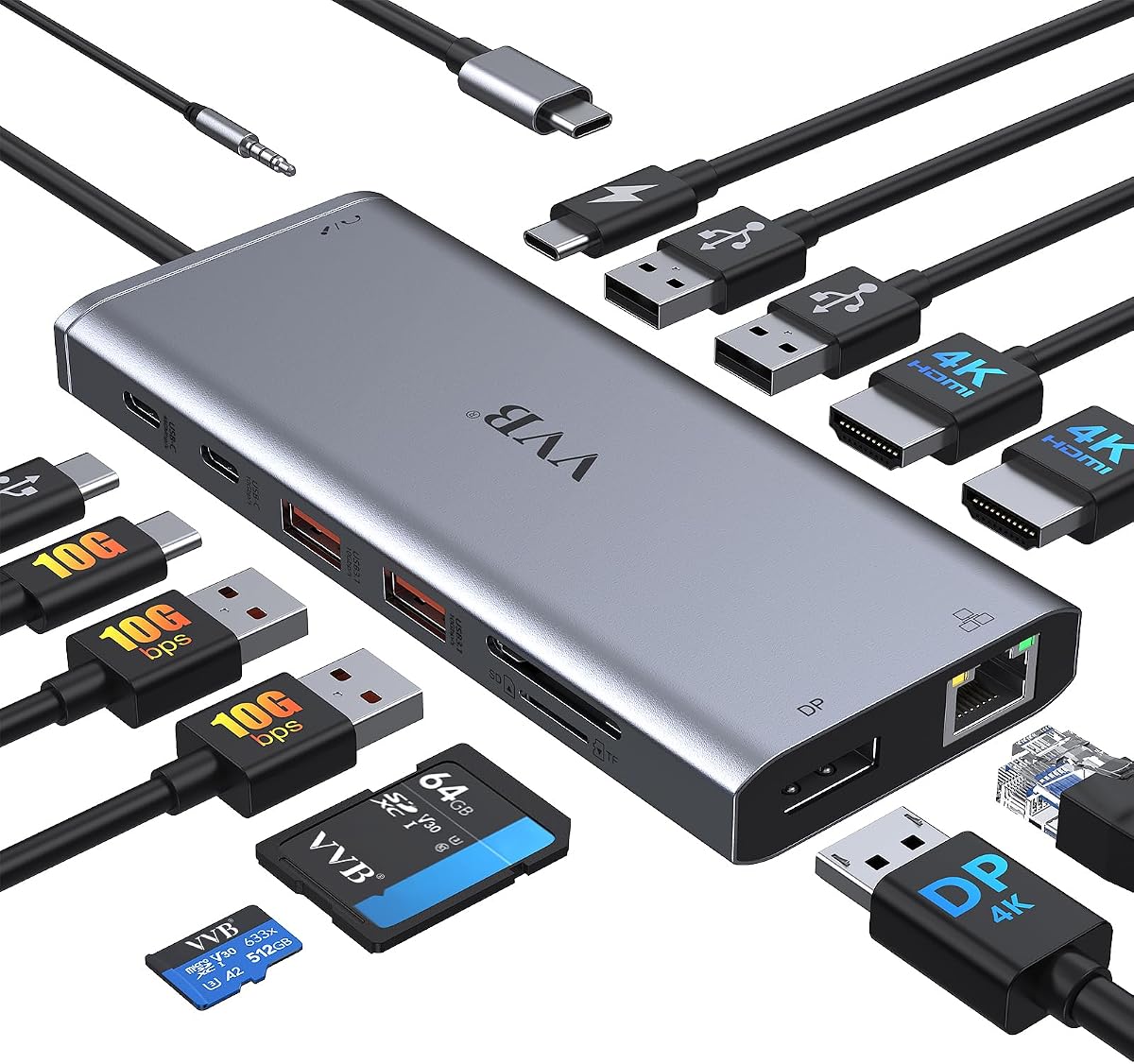
The Anker Laptop Docking Station offers exceptional value for users needing dual monitor support without breaking the bank. It provides an 8-in-1 solution that includes HDMI ports Ethernet and card reading capabilities. This versatility makes it a strong contender for budget-conscious buyers.
We may earn a commission when you buy through this link, at no additional cost to you.
Streaming content to two displays is smooth with 4K support at 30Hz or 60Hz depending on your setup. The power delivery pass-through ensures your laptop stays charged while you work on multiple screens. It is a practical choice for students and home office users.
While it lacks Linux support and offers slightly less charging power than premium docks, it covers most common needs well. The compact design means it is easy to transport between home and office. Anker reputation for reliability adds further confidence to this purchase.
If you are looking for a cost-effective way to expand your laptop capabilities this dock is an excellent start. It delivers on the core promises of connectivity and performance. This makes it a top recommendation for entry-level docking needs.
Enjoy seamless multitasking with dual HDMI ports supporting high resolution content streaming or mirroring effortlessly.
Get everything from USB data ports to SD card readers in one compact device for maximum versatility on a budget.
We may earn a commission when you buy through this link, at no additional cost to you.
The Anker Prime Docking Station redefines premium connectivity with its 14-in-1 design and impressive power output. It can charge up to four devices simultaneously delivering up to 100W to your laptop plus power for accessories. This level of performance suits power users who need reliability and speed.
We may earn a commission when you buy through this link, at no additional cost to you.
Data transfer speeds reach up to 10Gbps ensuring files move quickly between drives and systems. Dual HDMI ports support crystal-clear streaming at high resolutions for an immersive viewing experience. The comprehensive port selection eliminates the need for additional adapters or hubs.
Mac users should note that extended display support is limited compared to Windows systems. However for those on Windows this dock offers unparalleled flexibility and throughput. The investment is justified by the sheer number of capabilities packed into one device.
For professionals who demand the best in connectivity and charging efficiency this dock is a top choice. It handles complex setups with ease and maintains stability under load. This makes it a worthy premium option for demanding workflows.
Charges your laptop and multiple peripherals simultaneously with up to 160W total output for uninterrupted productivity.
Transfer large files quickly with 10Gbps data ports ensuring efficient workflows for creative and technical professionals.
We may earn a commission when you buy through this link, at no additional cost to you.
This versatile USB-C docking station offers extensive video output options including triple display support. It provides a 8-in-1 configuration with HDMI DP and VGA ports to accommodate various monitor types. This flexibility is rare at this price point for users with mixed hardware needs.
We may earn a commission when you buy through this link, at no additional cost to you.
The inclusion of a VGA port allows connection to older monitors while still supporting modern 4K displays. With up to 100W input it ensures your laptop receives adequate power during intensive use. The three USB 2.0 ports are perfect for keyboards and mice without interference.
Using VGA affects the resolution of other displays which is a trade-off to keep in mind. Also macOS users will be limited to mirrored mode on external screens. Despite these constraints it offers significant value for Windows users needing multiple screens.
If you need to connect multiple screens without a huge budget this dock is a solid contender. It handles diverse monitor combinations effectively. This makes it a practical choice for budget-conscious multi-monitor setups.
Connect up to three monitors for enhanced multitasking and screen real estate in a single compact device.
The VGA port ensures older monitors can still be utilized alongside modern HDMI and DP displays seamlessly.
We may earn a commission when you buy through this link, at no additional cost to you.
The Anker Nano Docking Station combines a full desktop dock with a detachable portable hub. This unique design allows you to use the full 13-in-1 setup at home and take the 6-in-1 portion for travel. It eliminates the need to buy separate devices for different environments.
We may earn a commission when you buy through this link, at no additional cost to you.
Connecting up to three monitors is supported for those needing extra screen space at their desk. The 100W Power Delivery ensures your laptop charges fully even with multiple peripherals attached. A 140W adapter is included to guarantee stable performance under heavy loads.
The base does require a laptop connection to activate the ports which might be a minor inconvenience. However the convenience of having a travel hub included is a significant benefit. This setup is ideal for hybrid workers who move between locations.
If you need a versatile docking solution that adapts to your location this is an excellent option. It saves money by combining two products into one package. This makes it a smart choice for mobile professionals.
Snap off the portable 6-in-1 hub for travel while keeping the full 13-in-1 station at your desk.
Connect up to three monitors via HDMI and DisplayPort for a powerful desktop workstation experience.
We may earn a commission when you buy through this link, at no additional cost to you.
This docking station offers a robust 14-in-1 solution for users needing extensive connectivity. It supports dual HDMI ports and a DisplayPort for versatile video output configurations. The inclusion of 10Gbps data ports ensures fast file transfers for large projects.
We may earn a commission when you buy through this link, at no additional cost to you.
You can connect up to three monitors for expanded multitasking which is ideal for data analysis or design work. The Gigabit Ethernet port provides a stable wired connection when Wi-Fi is unreliable. This combination of features makes it a strong competitor in the mid-range market.
Power users should note that the power adapter is not included so you will need to provide one. Also macOS users are limited to mirrored modes for external displays. For Windows users however this dock provides excellent value and performance.
If you need high-speed data transfer and multiple display options this dock is a reliable choice. It balances price with powerful features effectively. This makes it a great fit for demanding desktop setups.
Move files quickly with 10Gbps USB ports ensuring efficient workflows for large media or data files.
Expand your workspace with up to three monitors for enhanced multitasking and productivity.
We may earn a commission when you buy through this link, at no additional cost to you.
The Dell WD19S remains a reliable option for those who need high power delivery for demanding tasks. It provides 130W power delivery to ensure even high-performance laptops get enough energy. This makes it suitable for workstations running heavy software.
We may earn a commission when you buy through this link, at no additional cost to you.
Dual DisplayPort 1.4 support allows for high-resolution multi-monitor setups with clear visuals. It is designed specifically for Dell systems ensuring stable performance without driver issues. The simplicity of the setup is a benefit for IT departments managing many devices.
While it is an older model compared to the latest WD25 it still performs well for core tasks. Some users may find the design less modern than newer iterations. However the raw power and reliability make it a valid choice for businesses.
If you have legacy Dell laptops that need strong charging and video support this dock works well. It continues to offer proven connectivity options effectively. This makes it a solid backup or replacement choice for existing fleets.
Delivers up to 130W power to keep high-performance laptops running smoothly during intensive workloads.
Designed specifically for Dell systems to ensure seamless integration and reliable performance across devices.
We may earn a commission when you buy through this link, at no additional cost to you.
This Anker dock provides a comprehensive 13-in-1 solution ideal for users needing multiple screens. It supports triple external displays which is great for multitasking professionals or traders. The 85W charging ensures your laptop stays powered while you use all ports.
We may earn a commission when you buy through this link, at no additional cost to you.
The included 135W power adapter means you do not need to buy extra accessories. A compact vertical design saves desk space compared to wider horizontal docks. This makes it a practical fit for smaller desks or shared workspaces.
Mac users should be aware that extended display modes are limited compared to Windows systems. Also the vertical orientation might not suit everyone's desk layout preferences. However for Windows users the performance and feature set are impressive.
If you need reliable triple display support with ample charging power this is a strong candidate. It combines convenience with solid performance effectively. This makes it a good choice for home office professionals.
Connect up to three monitors to expand your workspace and enhance productivity significantly.
The compact vertical layout minimizes desk footprint while providing extensive connectivity options.
We may earn a commission when you buy through this link, at no additional cost to you.
The Dell WD19 is a classic docking solution known for its stable connectivity and wide range of ports. It offers 90W power delivery which is sufficient for many standard Dell laptops. This reliability makes it a trusted option for business environments.
We may earn a commission when you buy through this link, at no additional cost to you.
Dual DisplayPort 1.4 ports allow for high-resolution external monitors with crisp display quality. The Gigabit Ethernet port ensures you have a fast wired network connection when Wi-Fi is weak. It is a practical choice for those needing dependable performance.
While newer models offer more power this one still serves well for standard office tasks. Some users might prefer the latest standards but the core functionality remains robust. Compatibility with various Dell series ensures broad utility across devices.
If you need a straightforward reliable dock for business use this model delivers consistent results. It avoids unnecessary complexity while providing essential connectivity. This makes it a solid choice for corporate deployments.
Proven Dell reliability ensures stable connectivity for business environments without unexpected interruptions.
Dual DisplayPort and Ethernet ensure you have essential connections for monitors and networks easily.
We may earn a commission when you buy through this link, at no additional cost to you.
This renewed Dell WD19 offers a cost-effective way to access premium docking features without paying full price. It comes with an 180W power adapter ensuring strong delivery for laptops and peripherals. Buying renewed can save money while still providing certified functionality.
We may earn a commission when you buy through this link, at no additional cost to you.
The dock supports various Dell laptops including Latitude and XPS series for broad compatibility. It handles dual displays with ease allowing for productive multi-screen workflows. The included USB-C cables ensure you have what you need to start immediately.
While it is not brand new, certified refurbished products undergo testing to ensure they meet standards. Always check the warranty terms when purchasing to ensure peace of mind. This model is a practical choice for those watching their budget.
If you want a reliable Dell dock without spending full retail price this renewed option is worth considering. It offers the same core features at a lower cost. This makes it a smart pick for budget-conscious buyers.
Save money with a renewed dock that undergoes rigorous testing to ensure reliable performance.
Comes with a strong 180W power adapter to ensure your laptop and accessories stay fully charged.
We may earn a commission when you buy through this link, at no additional cost to you.
Selecting the right docking station involves considering several key factors to ensure compatibility and performance. This section breaks down the most important elements to evaluate before making a purchase.
Evaluate the types and number of ports you need for your peripherals such as USB-A, USB-C, HDMI, and Ethernet. Ensure the dock supports the specific connections required by your monitors and accessories.
Choose a dock that matches your device needs to avoid extra adapters and clutter.
Check the wattage of the USB-C power delivery to ensure it meets your laptop's charging requirements. Higher wattage is often needed for powerful workstations to avoid draining the battery during use.
Confirm the dock provides enough power to keep your laptop charged while in operation.
Determine how many external monitors you need to connect and the resolution required for your workflow. Look for support for multiple HDMI or DisplayPort connections with high refresh rates if needed.
Ensure the dock supports the number and type of displays you plan to use.
Verify that the docking station is compatible with your specific Dell laptop model and operating system. Some docks work better with certain Thunderbolt versions or display modes which affects performance.
Always check compatibility lists to avoid issues with your current hardware setup.
Look for durable materials and robust connectors that will withstand daily plugging and unplugging. A well-built dock ensures longevity and reduces the risk of connection failures over time.
Prioritize quality build to ensure the dock lasts as long as your laptop.
Consider docks that offer flexible cable routing to keep your workspace organized and free of tangles. Features like ambidextrous cables or vertical designs help streamline your desk environment.
Opt for design features that help maintain a tidy and efficient workspace.
Check the USB version supported by the dock to ensure fast data transfer rates for your files. High-speed data ports are essential if you work with large media files or frequent backups.
Ensure the dock supports fast USB standards to prevent data transfer bottlenecks.
Some modern docks offer eco-friendly features such as recycled materials and energy-efficient designs. These factors can help reduce power consumption and environmental impact over the device's life.
Consider sustainability features if environmental impact is a priority for your purchase.
Start by connecting the power adapter to the dock and plugging it into a reliable outlet. Ensure the connection is secure before attaching any devices to prevent power issues during use.
Connect your laptop to the dock using a high-quality USB-C or Thunderbolt cable. Wait for your system to recognize the new display and network connections before installing additional drivers.
Regularly inspect the ports and cables for dust or damage to maintain consistent performance. Keep the dock in a well-ventilated area to prevent overheating during extended usage sessions.
The Dell Pro WD25 and Anker Prime 14-in-1 offer strong performance for XPS models. These options provide high-speed data transfer and multiple video outputs. Ensure the dock supports Thunderbolt 3 or 4 for best compatibility.
Many modern docking stations support up to three external displays. Check specific model specs for HDMI and DisplayPort counts. Windows systems usually handle multiple displays better than macOS.
Most standard Dell laptops require 65W to 90W charging. High-performance models may need 100W or more. Always check your laptop's power requirements before purchasing a dock.
Many USB-C docks are universal and work with other brands. However Dell-specific docks may offer optimized features. Always check compatibility lists before buying to ensure support.
Try updating the dock firmware or laptop drivers to resolve issues. Also ensure the power adapter is properly connected. Reboot your system to refresh hardware detection settings.
Certified refurbished docks undergo testing and often come with warranties. They can save money without sacrificing performance. Always check the warranty terms and return policy.
Choosing the right dock involves balancing power delivery, port options, and your budget. The Dell Pro WD25 leads in eco-friendliness while Anker offers versatile high-power choices.
Prioritize models that match your display needs and charging requirements for a smooth setup. Ensure compatibility with your specific laptop model to avoid connection issues down the line.
Remember that availability and terms may shift so verify details before finalizing your purchase. This guide provides a strong foundation for selecting the perfect docking station.