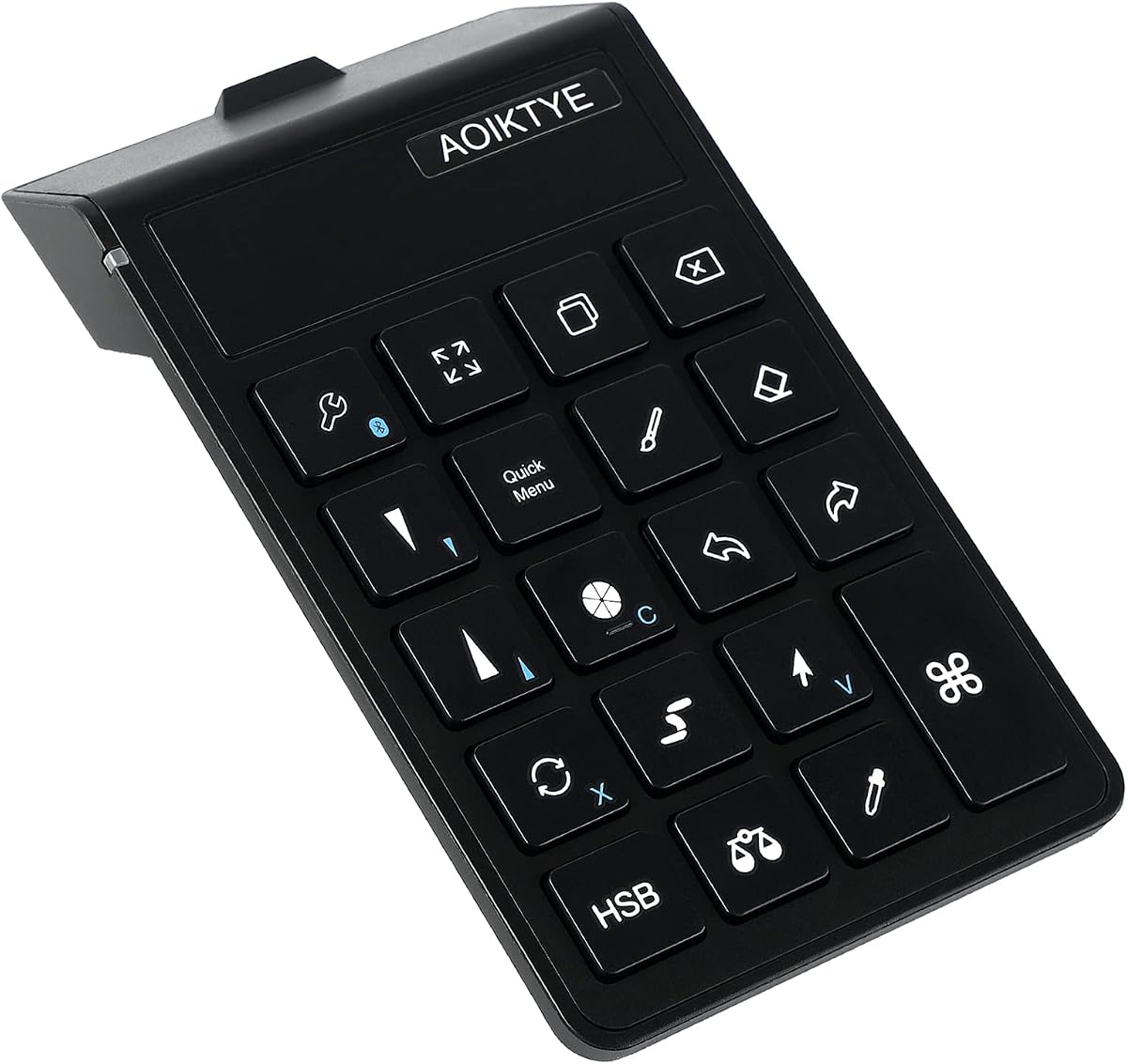
AOIKTYE Procreate Keyboard
4.5Editor score
22 dedicated shortcut keys
84 hour battery life
Optimized for Procreate
Discover the top iPad drawing Bluetooth controllers for artists. This guide compares features, compatibility, and performance to help you choose the perfect
Finding the right iPad drawing Bluetooth controller can transform your digital art workflow. These devices offer shortcut keys and dials to streamline your creative process on the go.
We evaluated ten top-rated wireless controllers based on compatibility, battery life, and customization options. Our analysis focuses on how each device integrates with popular drawing apps like Procreate and Photoshop.
Each pick highlights unique strengths and potential trade-offs for different user needs. Please note that product availability and pricing may change over time, so verify details before purchasing.
4.5Editor score

4.2Editor score

5.0Editor score
This table provides a side-by-side overview of the key specifications and unique features for each of the ten controllers reviewed in this guide to aid your decision making process.


The HUION Keydial Mini is a top contender for artists seeking a versatile shortcut keypad for their iPad workflow. It offers a solid mix of programmable keys and a functional dial for quick adjustments.
We may earn a commission when you buy through this link, at no additional cost to you.
Its 18 shortcut keys can be customized to execute complex commands with a single tap. The Bluetooth connection ensures a stable link up to ten meters, preventing interruptions during creative sessions.
While it requires driver installation for full customization, the process is straightforward. The anti-ghosting technology ensures that pressing multiple keys simultaneously registers accurately.
Artists who need a portable and reliable way to speed up their digital painting process should consider this model. It strikes a great balance between price and functionality.
The dial allows you to change brush sizes or navigate timelines without lifting your stylus, keeping you in the creative zone.
Bluetooth 5.0 technology provides a robust connection, reducing the risk of drop-offs during critical editing moments.
We may earn a commission when you buy through this link, at no additional cost to you.
For artists primarily using Procreate on their iPad, the AOIKTYE keyboard is a cost-effective solution designed specifically for that ecosystem. It simplifies common tasks like layer management and color picking.
We may earn a commission when you buy through this link, at no additional cost to you.
With 22 dedicated shortcut keys, it covers the most frequent commands used in digital illustration. The device boasts an impressive 84-hour battery life, ensuring it lasts through long sessions.
The keyboard uses Bluetooth connectivity to stay tethered to your iPad wirelessly. It is lightweight and easy to carry, making it suitable for artists working in various environments.
This is the ideal choice for hobbyists or professionals on a budget who want to boost efficiency without breaking the bank. Its focused design removes unnecessary complexity.
Keys are mapped to specific Procreate functions, allowing for rapid adjustments to brush settings and canvas manipulation.
The rechargeable battery supports days of usage on a single charge, minimizing downtime caused by power issues.
We may earn a commission when you buy through this link, at no additional cost to you.
The ShanWan controller offers a unique approach by combining gaming capabilities with drawing control features. It allows users to customize buttons for various inputs including mouse and keyboard commands.
We may earn a commission when you buy through this link, at no additional cost to you.
Its analog sticks and triggers provide precise control, which can be mapped to specific drawing actions. The device supports multiple platforms including iPad, making it versatile for mixed media workflows.
While it is designed primarily for gaming, the drawing control mode opens up interesting possibilities for artists who also game. The ergonomic design helps reduce hand fatigue.
This controller is suitable for those who want a single device for entertainment and creativity. However, users should be prepared to configure settings carefully to get the most out of it.
The controller can emulate keyboard and mouse inputs, allowing for broad compatibility with different drawing applications.
Having one device for both gaming and art reduces the need for multiple peripherals in your setup.
We may earn a commission when you buy through this link, at no additional cost to you.
The TNP iPad Remote is primarily designed for general navigation and media control but includes a trackpad for cursor movement. This can be helpful for navigating menus within drawing apps without using the touchscreen.
We may earn a commission when you buy through this link, at no additional cost to you.
It features Bluetooth connectivity and works with iOS devices to switch apps or activate Siri. The remote layout includes media controls which might be useful for listening to tutorials while you draw.
While not a dedicated drawing controller, its trackpad allows for basic cursor manipulation. It is a good secondary device for controlling your iPad from a distance.
Artists who need to present their work or control their device hands-free may find this useful. It offers basic utility but lacks the deep customization of other drawing controllers.
The trackpad enables mouse-like movement which can assist in selecting tools or navigating layers in supported applications.
Controls for home and Siri help manage your device state without reaching for the iPad itself.
We may earn a commission when you buy through this link, at no additional cost to you.
The XPPen ACK05 is a compact remote designed to speed up workflows with a dial and ten programmable keys. It offers a large battery that supports continuous work for hours without recharging.
We may earn a commission when you buy through this link, at no additional cost to you.
The dial provides clear click feedback when rotating, allowing for precise zoom or brush adjustments. Four sets of customizable shortcuts enable you to switch between different app configurations quickly.
Its thin design makes it easy to hold in one hand while drawing with the other. The anti-ghosting technology ensures reliable input even when multiple keys are pressed.
This controller is well-suited for artists who value portability and battery longevity. It is a strong option for those looking to integrate a dial into their mobile setup.
The physical click sound gives tactile confirmation of changes, which is useful when making adjustments without looking down.
A 1000 mAh battery ensures the device remains operational during extended creative marathons without frequent interruptions.
We may earn a commission when you buy through this link, at no additional cost to you.
The DIGIDRAW K30 stands out with a perfect user rating and dual dials for advanced control. It is built for artists who need precise adjustments without reaching for the keyboard or screen.
We may earn a commission when you buy through this link, at no additional cost to you.
Elevated tactile markers allow you to locate keys by feel, keeping your eyes on the canvas. The ultra-light design ensures it remains comfortable even during long periods of use.
With 11 programmable keys, you can map virtually any command you use frequently. The dual dial setup allows you to control separate variables simultaneously, such as brush size and opacity.
This device is ideal for professional users who demand high-quality hardware and customization. It represents a significant investment but offers top-tier performance for digital art.
Having two dials allows for simultaneous control over multiple parameters, enhancing the speed and fluidity of your workflow.
The tactile design allows you to maintain creative focus without breaking visual contact with your artwork.
We may earn a commission when you buy through this link, at no additional cost to you.
The TourBox Lite offers a stylish and ergonomic approach to creative control with a simplified layout. It features automatic detection of the active software to switch settings instantly.
We may earn a commission when you buy through this link, at no additional cost to you.
The knob and raised buttons provide clear tactile feedback for confident adjustments. It is designed to reduce the time spent memorizing shortcuts, allowing for a more intuitive workflow.
While it is often used with desktops, the wireless capability makes it adaptable for various setups. The light design makes it travel-friendly for artists on the move.
Artists looking for a device that minimizes setup time and maximizes creative flow will appreciate its auto-detection feature. It is a premium tool designed for efficiency.
The controller automatically adjusts to match the active application, ensuring you always have the right shortcuts ready.
Designed with ergonomic data, the shape fits comfortably in the hand for extended periods of use.
We may earn a commission when you buy through this link, at no additional cost to you.
The Modded Tablet Controller is a high-end gaming device that can be adapted for creative tasks. Its Hall Effect sticks provide precise input that can be mapped for drawing control.
We may earn a commission when you buy through this link, at no additional cost to you.
It includes motion sensing and vibration motors which may add to the immersion when using stylus-based apps. The expandable design ensures a secure fit for various iPad sizes.
With a solid battery capacity and durable construction, it is built for heavy use. The customizable parts allow you to personalize the look and feel of the controller.
This is an excellent choice for artists who also engage in gaming and want a single durable device. It offers robust hardware that can handle demanding workflows.
Hall Effect technology ensures longevity and accuracy, making it suitable for precise control needs in creative apps.
Magnetic interchangeable parts let you tailor the controller to your specific preferences and needs.
We may earn a commission when you buy through this link, at no additional cost to you.
The Clip Studio Tabmate 2 is designed specifically for users of Clip Studio Paint. It provides quick access to essential tools within that specific ecosystem for efficient drawing.
We may earn a commission when you buy through this link, at no additional cost to you.
It connects via Bluetooth Low Energy to ensure reliable performance with minimal power drain. The device includes a license for the software which adds value to the purchase.
Since it uses AA batteries, it offers a long operational life without the need for recharging. However, you must ensure you have the batteries ready to use it out of the box.
This controller is the perfect addition for dedicated Clip Studio artists on the go. It removes the need to rely on on-screen menus for common actions.
Built specifically for Clip Studio Paint, every button is optimized for the workflow of this popular art app.
The use of AA batteries allows for easy replacement in the field without needing a charging cable.
We may earn a commission when you buy through this link, at no additional cost to you.
The Wacom Intuos Small offers a complete drawing solution with a pressure-sensitive pen. It connects via Bluetooth for a wireless experience similar to an input controller.
We may earn a commission when you buy through this link, at no additional cost to you.
The pen is battery-free due to EMR technology, ensuring it is always ready for use without charging. It comes with software and training to help you get started quickly.
While it is a tablet rather than a shortcut controller, it complements your workflow by providing precision input. It is a reliable choice for artists needing professional quality tools.
For those seeking an all-in-one hardware solution, this is a trusted option. It delivers precision drawing capabilities alongside essential software support.
Industry-leading technology provides natural stroke variation that mimics traditional media for realistic results.
Included software and training help you start creating immediately without needing additional purchases.
We may earn a commission when you buy through this link, at no additional cost to you.
Selecting the right controller depends on your specific app usage and workflow preferences. This guide covers the essential factors to consider for the best experience.
Ensure the controller supports your primary drawing application. Some devices are optimized for Procreate or Clip Studio Paint while others are universal.
Universal drivers provide more flexibility across different software environments.
Bluetooth version matters for connection stability and battery life. Look for Bluetooth 5.0 or higher for a reliable wireless experience.
Also check if the device offers a wired connection option for backup use.
Long battery life reduces interruptions during long sessions. Rechargeable batteries are more convenient than AA cells but may be heavier.
Choose a model that lasts long enough for your typical daily work hours.
The ability to customize keys is crucial for efficiency. A device that allows multi-key combinations offers more power than fixed shortcuts.
Check if the software for programming is easy to use on your device.
Comfort is vital for artists who work for hours. Look for a device that fits naturally in your hand and allows one-handed use.
Lightweight materials help prevent fatigue during extended creative marathons.
Dials allow for quick and precise adjustments of parameters like brush size. A dial with tactile feedback is easier to use without looking.
Check how many functions the dial can be assigned to before swapping modes.
If you work in multiple locations, size and weight are important. A compact controller fits easily into a bag with your iPad and stylus.
Ensure it can withstand travel and daily transport without damage.
Evaluate the cost against the features you actually need. A budget model may suffice if you only need basic shortcuts.
Premium models offer advanced customization but may not be necessary for everyone.
Begin by installing the required driver or companion app on your iPad. Most controllers need software to recognize keys and assign shortcuts correctly.
Place the controller in a comfortable position on your desk so that you can reach it with your non-dominant hand while drawing.
Regularly charge or replace batteries to ensure consistent performance. Keep the device clean and store it in a protective case when not in use.
Many controllers on this list support Procreate either through specific optimization or via Bluetooth keyboard shortcuts. Check the product description to confirm compatibility with the app version you use.
Some game controllers like the ShanWan offer mapping features that allow for drawing controls. However, they are designed primarily for gaming and may require extra setup to work well with art apps.
A dial allows you to adjust brush size or zoom quickly without switching tools. It keeps your workflow fluid by letting you make changes with a simple turn of the dial.
Most modern controllers use Bluetooth pairing which is similar to connecting a phone. You may need to install a driver for full customization on macOS or Windows.
Many controllers support both iPad and Android tablets. Verify the product details to ensure compatibility with your specific Android version and screen size.
You typically need to download the manufacturer's app or driver. This software lets you assign specific commands to each button or dial function.
We have reviewed ten distinct options ranging from budget-friendly keyboards to premium dual-dial controllers. Each offers unique features to enhance your digital art workflow.
Prioritize a device that supports your specific app and offers the battery life you need for uninterrupted creative sessions.
Always verify the latest pricing and availability before buying since these factors change frequently in the market.